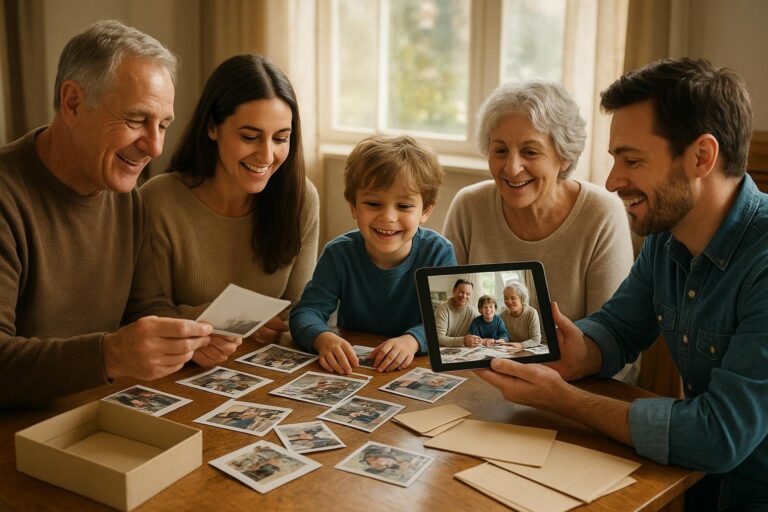
How to Create a Memory Slideshow Families Love
A practical guide to building a warm, well-paced memory slideshow from family photos and videos without getting lost in camera roll chaos.

A good memory slideshow does more than play pretty pictures in order. It helps people feel the shape of a life, a season, a relationship, or a family story. It gives grandparents a reason to tell the details behind an old porch photo. It helps cousins recognize themselves in the same beach trip from three different phones. It turns the scattered evidence of real life into something people can sit with, laugh through, and keep.
That is also why making one can feel strangely hard. Most families do not start with one neat folder called “Best Memories.” They start with camera rolls, text threads, cloud albums, scanned prints, videos from different devices, and a few mystery files named with numbers. The goal is not to become a professional editor. The goal is to build a slideshow that feels clear, warm, and true.
This guide walks through a practical way to create a memory slideshow using dates, collections, short videos, and simple storytelling decisions. It is written for families, memory keepers, photo organizers, adult children collecting parents’ pictures, new parents capturing the first years, and anyone who has promised, “I’ll make something with these someday.”
Start with the occasion, not the entire archive
The fastest way to get stuck is to begin with every photo you own. A better starting point is the reason people will watch. Are you making a birthday slideshow for a parent? A graduation recap? A celebration of life? A holiday video to send to relatives? A “first ten years” collection for a child? Each occasion needs a different rhythm.
A birthday slideshow might be playful and full of everyday moments. A memorial slideshow may need more breathing room, fewer jokes, and careful attention to the person’s full life. A reunion slideshow should favor group moments and recognizable places. A child’s year-in-review can move quickly because the audience already knows the small milestones.
Before sorting photos, write one sentence that defines the slideshow. For example: “This is the story of Mom as a sister, teacher, traveler, grandmother, and friend.” Or: “This is our family’s summer at the lake, from the first muddy arrival to the last sunset.” That sentence becomes your filter when the pile gets emotional or too big.
Choose a structure viewers can follow
Most strong slideshows use one of three structures: chronological, thematic, or event-based. Chronological is usually best for life stories, childhood-to-adulthood milestones, anniversaries, and family timelines. Thematic works beautifully when dates are incomplete or when you want sections such as “Grandma’s kitchen,” “Road trips,” “Backyard birthdays,” and “The people she loved.” Event-based works for weddings, vacations, school years, reunions, and holidays.
If your photos and videos already have reliable dates, chronological order can create an easy emotional arc. This is where a dated photo manager is useful: instead of dragging files around one by one, you can work from the dates attached to your media and then refine the story. If your dates are messy because scans were added years later, use broad eras: “1950s childhood,” “early married years,” “raising kids,” “grandparent years,” and “recent favorites.”
The best structure is the one your audience can understand without explanation. If people are watching at a party, they may be chatting while it plays. If they are watching at a memorial or family gathering, they may be more focused. Either way, clear sections help the slideshow feel intentional instead of random.
Gather photos and videos into one working place
Before you choose the final images, gather the candidates. Pull from phones, shared albums, old laptops, USB drives, scanned prints, and family text messages. Do not try to perfect everything during the gathering stage. The job is simply to get the likely memories into one place so you can see what you have.
Timeless is designed for this kind of family memory work: dated media, collections, family timelines, private archives, and slideshows that are easier to build because your photos and videos are not floating in separate places. You can start from the Timeless home page at https://timeless.mydayzy.com/ or explore the feature set at https://timeless.mydayzy.com/features/ if you are deciding how you want your family archive to work.
As you gather, keep a simple “maybe” mindset. A blurry picture may still matter if it is the only image of a person with their favorite dog. A short video may be more valuable than ten posed photos because it captures a voice, laugh, or gesture. Memory preservation is not only about perfect images. It is about meaningful evidence.
Make a first pass by date
Dates are one of the simplest ways to reduce overwhelm. When you organize family photos by date, you can see clusters: the wedding weekend, the hospital visit, the annual camping trip, the last Thanksgiving in the old house, the stretch of toddler birthdays that all look similar until you notice the tiny changes.
Start with broad sorting. Group media by year, decade, trip, school year, or major life chapter. If exact dates exist, keep them. If they do not, estimate gently. “Summer 1998” is still better than “unknown.” For scanned prints, add context when family members know it: who is pictured, where it happened, and approximately when.
This step is not just technical. Date order often reveals a story you did not know was there. You may notice that a grandfather appears in every holiday photo holding a different grandchild. You may realize that the family moved houses right before a child’s first day of school. You may find the sequence that makes a slideshow feel like a timeline instead of a folder dump.
Build collections before you build the slideshow
A collection is a smaller group of media with a purpose. Think of it as a tray on your kitchen table before you start arranging the album. You might create collections for “Dad with his brothers,” “family vacations,” “school and sports,” “holiday tables,” “home movies,” or “quiet everyday moments.”
Collections are especially helpful when several people are contributing. One sibling may upload old Christmas photos. Another may have videos from recent birthdays. A cousin may send scanned black-and-white pictures. Instead of forcing everything immediately into final order, collect by theme or chapter first.
For a memory slideshow, aim for collections that answer one of these questions:
- What stages of the person’s life or family story should be represented?
- Which relationships need to be included?
- Which places mattered most?
- Which ordinary rituals show the real personality of the family?
- Which videos capture voices, movement, or atmosphere that photos cannot?
A digital memory keeper can use collections as the bridge between archive and story. The archive keeps everything safe. The collection gives you the working set. The slideshow becomes the finished experience people can watch and share.
Edit for feeling, not just fairness
Many family slideshows become too long because the maker tries to represent everyone equally. That instinct is kind, but it can weaken the story. A slideshow is not a legal record. It is an emotional experience. The better question is not “Did every person get the same number of photos?” It is “Does this feel like the truth of the memory?”
For most family occasions, choose images that do at least one job. They show a relationship, mark a moment, reveal personality, capture a place, or move the story forward. If five photos show the same group smiling at the same table, choose the one with the most life in it. If two photos are similar but one includes a person who appears nowhere else, choose that one.
For sensitive situations, make a simple inclusion list before you edit. In a memorial slideshow, you may want to include parents, siblings, spouse or partner, children, grandchildren, close friends, work life, hobbies, and later years. In a graduation slideshow, you may include baby years, school milestones, teams or clubs, family support, friendships, and a few recent portraits.
Use video clips sparingly but intentionally
Short videos can be the most powerful part of a slideshow. A three-second clip of someone dancing in the kitchen can say more than a perfect portrait. A child mispronouncing a word, a grandparent waving from a porch, or a shaky clip from a vacation boat can bring the room to life.
The trick is to use video with restraint. Long unedited clips can interrupt the flow. Choose short moments with a clear reason to be there. If you are using Timeless as a video memory organizer, look for clips that add sound, motion, or personality. A good video clip often works best after a small run of related photos because it feels like the memory suddenly starts breathing.
When reviewing videos, ask:
- Does this clip have a voice, laugh, movement, or moment worth preserving?
- Can viewers understand it quickly?
- Is the clip emotionally appropriate for the occasion?
- Would trimming it make it stronger?
- Does it add something photos do not already show?
Keep the pace comfortable
Pacing is where many slideshows succeed or fail. Too fast, and people cannot recognize faces. Too slow, and the room gets restless. A good general pace is to let important images linger longer and let lighter transition images move faster. If the slideshow will play in the background at a gathering, a slightly faster pace can work. If everyone will sit and watch together, give emotional photos more time.
Length matters too. A five-minute slideshow can be perfect for a birthday dinner. Eight to twelve minutes may work for a memorial or anniversary if the story is rich and the audience is invested. For a casual family reunion, consider several shorter collections instead of one very long presentation. People are more likely to rewatch a focused slideshow than a complete archive set to music.
A helpful rule is to build the first version longer than needed, then cut by twenty percent. Removing extras usually makes the final version feel more loving, not less. The strongest memories get more attention when duplicates are gone.
Add context where it helps
Some images speak for themselves. Others need a little context. If your slideshow tool allows captions or section titles, use them sparingly. A simple year, place, or chapter label can help viewers understand what they are seeing without turning the slideshow into a documentary script.
Good context sounds natural: “The Oak Street house,” “First lake trip,” “Teaching years,” “Cousins everywhere,” “Sunday dinners,” or “The garden she loved.” Avoid overexplaining every photo. Leave room for the people watching to react, remember, and tell stories out loud.
If you are building a private family photo archive, context is even more valuable beyond the slideshow. Future family members may not know who is in a picture or why a place mattered. Add names, dates, and notes when you can. Today’s caption may become tomorrow’s family history.
Plan for different family situations
Every family memory project has its own reality. A blended family may need a slideshow that honors multiple branches without making anyone feel like an afterthought. A long-distance family may need something easy to share privately. A caregiver may be making slideshows for an older parent who enjoys seeing familiar faces in dated order. A professional photo organizer may be helping a client turn years of media into collections the family can actually use.
For young families, the challenge is often volume. There are thousands of baby photos, but the slideshow only needs the moments that show change: first smiles, messy meals, favorite toys, early steps, grandparents visiting, first snow, and ordinary mornings. For families preserving older memories, the challenge is often missing dates. In that case, rely on eras, locations, clothing clues, and relatives’ knowledge.
For families dealing with grief, go slowly. A memory slideshow can be healing, but the editing process may be emotional. Work in short sessions. Invite help from someone who can make practical decisions when you feel overwhelmed. Keep a “save for later” collection so you do not have to delete meaningful images just because they do not fit this slideshow.
Create a simple workflow you can repeat
The best memory system is one you can use more than once. After you finish one slideshow, you should not have to start from chaos again. Use this workflow as a repeatable pattern:
- Define the story. Write one sentence about the occasion and audience.
- Gather media. Bring photos, scans, and videos into one working place.
- Sort by date or chapter. Use real dates where possible and estimated eras where needed.
- Create collections. Group media by theme, person, place, or milestone.
- Select the strongest moments. Choose images and clips that move the story forward.
- Set the pace. Keep the slideshow focused and comfortable to watch.
- Add light context. Use dates, places, or section labels only where they help.
- Share privately. Make sure the right people can view it without exposing the whole archive.
This is where Timeless can become part of the family habit, not just a one-time project. Instead of waiting until a milestone creates pressure, you can keep dated media organized, create collections as life happens, and turn those collections into slideshows when the moment arrives. If you are ready to begin, you can create an account at https://timeless.mydayzy.com/sign-up/ or compare options at https://timeless.mydayzy.com/pricing/.
Share the slideshow in a way that fits the memory
How you share matters. A slideshow for a public event has different needs than a private family reflection. For a birthday party, you might play it on a TV while people arrive, then send it afterward. For a memorial, you may want a version that can be watched quietly by relatives who could not attend. For an ongoing family archive, you may want slideshows organized by collection so people can revisit them over time.
Privacy is important because family photos often include children, homes, older relatives, and emotionally sensitive moments. Not every memory belongs on a public feed. A private family photo archive gives you a more thoughtful place to preserve and share without mixing treasured media into the noise of social platforms.
Before sending a slideshow, consider who should have access, whether any images need permission, and whether the slideshow includes vulnerable moments. Sharing with care is part of preserving the memory well.
Do not wait for perfect organization
One of the biggest myths about memory projects is that the whole archive must be finished before you make anything. It does not. You can create a beautiful memory slideshow from one collection, one year, one trip, or one person’s story. In fact, finishing a small slideshow often gives families the motivation to keep organizing.
Start with a project that has a clear emotional reward. Make a five-minute slideshow for a grandparent’s birthday. Build a “summer cousins” collection. Create a first-year slideshow for a child. Preserve a set of old family videos before they stay forgotten on a drive. The point is to turn stored media into shared memory.
Timeless supports that shift: from files you avoid because they are overwhelming to dated media, collections, family timelines, preserved stories, and slideshows people can enjoy. A memory slideshow is not the end of the archive. It is one of the most meaningful ways your archive becomes alive for the people it belongs to.
A final checklist for a better memory slideshow
- Choose one clear occasion and audience.
- Use dates to create order, but do not let missing dates stop you.
- Build collections before making final selections.
- Favor meaningful variety over equal representation.
- Include short videos when they add voice, movement, or personality.
- Keep the length focused enough that people will want to rewatch.
- Add simple context for years, places, and chapters.
- Share privately and thoughtfully.
- Save the larger archive so future slideshows are easier.
The photos are already part of your family story. The videos are already holding voices, rooms, weather, jokes, and gestures. A memory slideshow simply gives those pieces a path. Start small, follow the dates where they help, collect the moments that matter, and build something your family can gather around now and return to later.
Turn family media into something everyone can revisit
Start organizing dated photos and videos in Timeless, build collections around the people and moments that matter, and create memory slideshows your family will actually watch.
Frequently Asked Questions
What is the best length for a memory slideshow?
For most family occasions, five to eight minutes works well. Memorials, anniversaries, and milestone birthdays can run longer if the pacing is thoughtful and the audience is prepared to watch.
Should a memory slideshow be chronological?
Chronological order is often best for life stories and family timelines, but thematic sections can work better when dates are missing or when the story is centered on places, relationships, or traditions.
Can I include videos in a memory slideshow?
Yes. Short video clips can make a slideshow more emotional and memorable, especially when they capture a voice, laugh, movement, or meaningful place. Keep clips brief so the slideshow keeps moving.
How do I start if my family photos are scattered everywhere?
Begin by gathering likely photos and videos into one working place, then sort broadly by date, era, event, or theme. You do not need to organize the entire archive before creating one focused slideshow.
Why use Timeless for memory slideshows?
Timeless helps families organize dated photos and videos, build collections, preserve family timelines, and create slideshows from meaningful media instead of starting from scattered files each time.